---
title: "We Deployed an Hour Ago. Why Do Users Still See the Old Version? · Ihab Khattab"
description: "An interview question about a deploy that didn't reach users, and the follow-ups that walk through every layer that can hold an old copy: the HTTP cache, the CDN, the open tab, and the service worker."
url: "https://ihabkhattab.com/blog/deployed-but-users-see-the-old-version/"
---
# We Deployed an Hour Ago. Why Do Users Still See the Old Version?
Oct 19, 2026 · 9 min read · Updated Oct 22, 2026
Part 1 of **The Follow-Up**
Each post is one frontend interview question and the follow-ups after it. AI answers the first question easily. The follow-ups need a real mental model, and that model tells you what to ask, yourself and your agent.
Picture a frontend interview. The interviewer leans back:
> We shipped a fix an hour ago. The build is fine and the server has the new files. Support says some users still have the bug. What’s going on?
The first answer comes fast: “The browser cached it. Tell them to hard refresh.” That’s not wrong. It just doesn’t explain anything yet: which file was cached, by what, for how long, and why only some users. Every follow-up below is a different place an old copy can live.
## Question 1: Which File Is Old?
> Say the browser did cache it. Which file?
Probably not the JavaScript. Most build tools put a hash of the content in each asset’s file name:
```html
```
When the code changes, the hash changes, so the new build ships `app.8b1e07.js`. The browser has never seen that URL, so it can’t have it cached.
The file that keeps its name is `index.html`. If the browser reuses yesterday’s HTML, it asks for yesterday’s script, gets it from cache or from the server, and runs yesterday’s code. So the question is really: why did the browser reuse old HTML?
## Question 2: No Cache Header Means No Caching, Right?
> Our server sends no `Cache-Control` on `index.html`. So it isn’t cached.
This is the follow-up most people miss. Without `Cache-Control` or `Expires`, a browser is allowed to guess how long a response stays fresh. HTTP calls this heuristic freshness ([RFC 9111](https://www.rfc-editor.org/rfc/rfc9111#name-calculating-heuristic-fresh)). The usual guess is 10% of the time since `Last-Modified`:
```http
HTTP/1.1 200 OK
Last-Modified: Tue, 07 Oct 2026 09:00:00 GMT
Date: Fri, 17 Oct 2026 09:00:00 GMT
```
The file was last changed ten days before this response. Ten percent of ten days is one day. For the next day, the browser can reuse this HTML without asking the server, and your deploy is invisible to that user.
The older the file, the longer the guess: a page that hasn’t changed in a year can stay fresh for more than a month.
Here’s that rule for four users who last visited at different times before a deploy. Drag the slider to change how old the file was:
Interactive figure: four users last loaded index.html 3 days, 1 day, 6 hours, and 1 hour before a deploy. With the file last changed 10 days before the deploy, each copy stays fresh for about a day, so the two most recent visitors can get the old HTML for up to 23 hours after the deploy. [Try it on the page](https://ihabkhattab.com/blog/deployed-but-users-see-the-old-version/).
_Each user's copy stays fresh for 10% of the file's age when they loaded it. Where that window reaches past the deploy, their next visit reuses the old HTML without asking the server._
That’s also why only some users see it: it depends on when each of them last loaded the page, and on how old the file was then. And it’s why “refresh” often works: a normal reload goes back to the server even while the page is still fresh.
Many hosts send a `Cache-Control` header by default, so this depends on where you deploy. Check what yours actually sends instead of assuming.
## Question 3: Then Turn Caching Off
> Fine. Send `no-store` on everything.
That fixes the bug and makes every visit download everything again. The better answer splits files into two kinds:
```http
# index.html: keep a copy, but ask the server before every use.
Cache-Control: no-cache
ETag: "5d8c72a5"
# /assets/app.3f9a1c.js: this URL will never have different content.
Cache-Control: public, max-age=31536000, immutable
```
- `no-cache` doesn’t mean “don’t cache”. It means “store it, but revalidate before using it”. The browser sends `If-None-Match: "5d8c72a5"`. If nothing changed, the server answers `304 Not Modified` with no body: one small round trip.
- `no-store` is the one that means “don’t keep a copy”. Use it for responses that must never be stored, like a page with private data. It can also cost you the back/forward cache: some browsers won’t keep a `no-store` page there, so Back loads it again.
- Hashed assets get a year and `immutable`. Their name changes when their content does, so the browser never needs to ask about them again.
Figure: a second visit under each header. With no-store, the browser downloads the page every time. With no-cache, it sends If-None-Match and gets a 304 with no body, or a 200 with the new page after a deploy. With max-age and immutable, it sends no request for app.3f9a1c.js; after a deploy, the new HTML names a new URL.
_The same second visit under each header. Switch to “we deployed since” to see that no-cache still catches the deploy, and that the immutable file is never asked about: the new HTML just names a new URL._
## Question 4: Why Put a Hash in the Name?
> Why not keep `app.js` and add `?v=42` on every deploy?
Two reasons.
The hash belongs to one file. A deploy that only changes the settings page changes that chunk’s hash, plus the hash of the chunk that imports it, since its code now names a different file ([Rollup](https://rollupjs.org/configuration-options/#output-chunkfilenames) includes “any referenced file hashes” in a chunk’s hash). Returning users download two small chunks instead of the whole app. A `?v=42` build number changes every URL on every deploy, so everything is downloaded again.
And the hash describes the content, not the deploy. Two builds of the same code give the same name, and a different name always means different bytes. That’s what makes a year of `max-age` safe.
Interactive demo: a returning user has build 42 cached. After a deploy that only edits the settings chunk, content hashes change two URLs (settings and the entry chunk that imports it), so the user downloads 20 kB. With ?v=43, every URL changes and the user downloads all 210 kB. [Try it on the page](https://ihabkhattab.com/blog/deployed-but-users-see-the-old-version/).
_One returning user, two naming schemes. Deploy a change and count what they download again._
## Question 5: Some Users Still Get It for an Hour
> We fixed the headers. Now some users get the old version for up to an hour after each deploy, and then it stops.
A delay with a fixed length points to a cache with a fixed lifetime. Your browser headers are fine. Something between the browser and the server is holding the HTML: a CDN.
A CDN reads `Cache-Control` too, but most let you override it. An edge rule like “cache HTML for one hour” overrides your headers. Look at the response:
```http
Cache-Control: no-cache
Age: 2412
```
`Age` is the number of seconds the response has been sitting in a shared cache. If it’s above zero, a CDN served this response from its cache, and the browser’s `no-cache` revalidation went to the CDN, not your server. Many CDNs also add their own header, like `cf-cache-status: HIT` or `x-cache: HIT`.
The fixes: purge the HTML from the CDN as part of the deploy, or tell the CDN directly how long to keep it. The `CDN-Cache-Control` header ([RFC 9213](https://www.rfc-editor.org/rfc/rfc9213)) applies only to CDNs, and browsers ignore it:
```http
Cache-Control: no-cache
CDN-Cache-Control: max-age=60
```
Cloudflare, Vercel, and Netlify read `CDN-Cache-Control`. CloudFront and Fastly don’t list it in their docs. They read `s-maxage`, which applies to every shared cache: `Cache-Control: max-age=0, s-maxage=60`. Either way, an edge rule in the CDN dashboard can still override what your headers say, so check those too.
## Question 6: A Blank Screen With No Cache Involved
> A user opened the app yesterday and left the tab open. Today they click “Settings” and get a blank screen.
Nothing is cached here. The old version is the page itself, still running in memory. The tab loaded yesterday’s HTML and yesterday’s code, and that code still knows yesterday’s file names.
“Settings” is loaded on demand:
```js
const settings = await import("./settings.4c2d9e.js");
```
Today’s deploy replaced `settings.4c2d9e.js` with `settings.a71f30.js` and deleted the old file. The request returns 404, the `import()` promise rejects with a `TypeError`, and nobody handles it. In Chrome the error reads:
```txt
Failed to fetch dynamically imported module: https://example.com/assets/settings.4c2d9e.js
```
Three fixes, and real apps often use all of them:
1. **Keep old assets for a while.** Deploy new files next to the old ones and delete old ones days later, not right away. Hashed names never collide, so this is safe.
2. **Reload when a chunk is missing.** A failed dynamic import in a long-lived tab usually means a newer deploy. Reload once to get the new HTML. Don’t match on the error message: each browser words it differently.
3. **Tell users a new version is out.** Poll a small `version.json`, or check a header on API responses, and show a “Reload to update” message.
Try it: deploy, then open Settings in the old tab. Then turn on a fix and start over.
Interactive demo: a tab running build 41, a server that gets build 42, and a Settings page loaded with import(). After the deploy, opening Settings requests settings.4c2d9e.js, which the server deleted, so the import fails and the screen stays blank. Keeping old assets, reloading once on a missing chunk, or showing an update banner each avoid it. [Try it on the page](https://ihabkhattab.com/blog/deployed-but-users-see-the-old-version/).
_The tab only asks for settings.4c2d9e.js when you first open Settings. If you open it before the deploy, the chunk is already in memory and keeps working._
```js
async function loadRoute(load) {
try {
const module = await load();
sessionStorage.removeItem("reloaded-for-deploy");
return module;
} catch (error) {
// This tab's code points to files a newer deploy removed. Reload once to get the new HTML.
if (!sessionStorage.getItem("reloaded-for-deploy")) {
sessionStorage.setItem("reloaded-for-deploy", "1");
location.reload();
}
throw error;
}
}
const settings = await loadRoute(() => import("./settings.4c2d9e.js"));
```
The `sessionStorage` flag stops a reload loop: if the chunk is still missing after one reload, the problem isn’t the deploy.
## Question 7: Now Add a Service Worker
> The app has a service worker that caches the app shell for offline use. What changes?
The service worker sits in front of the HTTP cache. If it answers `index.html` from its own cache, your `Cache-Control` headers don’t matter. That cache only changes when your service worker code changes it.
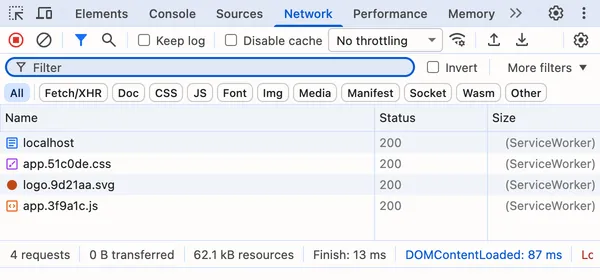
_The same app with a service worker that cached its shell. Every row, the document included, came from the worker._
So the question becomes: when does a new service worker take over?
1. On a navigation, the browser checks whether `sw.js` changed. By default this check skips the HTTP cache for `sw.js` itself.
2. If it changed, the new worker installs and then **waits**. The old worker keeps controlling every open tab.
3. The new one takes over only when no tab uses the old one anymore. Reloading doesn’t do it, however many times you try: the new page starts loading before the old one goes away, so the old worker always has a tab. Closing every tab does.
You can call `self.skipWaiting()` to take over right away, but then the new worker controls a page that’s still running the old code. That’s Question 6 again: old code asking for files the new worker doesn’t have.
The safer pattern: let the new worker wait, tell the user, and switch when they say so.
Try all three. Deploy v2, then reload, open, and close tabs:
Interactive demo: two tabs controlled by service worker v1. After v2 is deployed, the next navigation installs it and it waits. Reloading a tab keeps it on v1; closing every v1 tab lets v2 activate. With skipWaiting(), v2 takes over at once, and tabs end up running v1 code under a v2 worker. With the banner, the user clicks Reload and every tab reloads onto v2. [Try it on the page](https://ihabkhattab.com/blog/deployed-but-users-see-the-old-version/).
_A deploy does nothing until a navigation checks sw.js. Then the new worker waits for every tab on the old one to close. Reloading doesn't count._
```js
// In the page
const registration = await navigator.serviceWorker.register("/sw.js");
registration.addEventListener("updatefound", () => {
const worker = registration.installing;
worker.addEventListener("statechange", () => {
// "installed" with an existing controller means an update is waiting, not a first install.
if (worker.state === "installed" && navigator.serviceWorker.controller) {
showUpdateBanner(() => worker.postMessage("skip-waiting"));
}
});
});
navigator.serviceWorker.addEventListener("controllerchange", () => location.reload());
```
```js
// In sw.js
self.addEventListener("message", (event) => {
if (event.data === "skip-waiting") self.skipWaiting();
});
```
A worker may already be waiting when the page loads, from a visit that never clicked the banner. Check `registration.waiting` at startup too.
## Question 8: Prove It
> A user sends a screenshot of the old version. How do you find out which layer served it?
Go from the outside in.
- **Ask the page.** Put the build ID in the HTML, like ``, and show it somewhere a user can read it. Now “old version” has a number.
- **Skip the browser.** `curl -sI https://example.com/` has no browser cache and no service worker. If it returns old HTML, the problem is the CDN or the server. Check `Age` and the CDN’s cache header.
- **Read the Network panel.** The size column says where a response came from: in Chrome, `(memory cache)`, `(disk cache)`, or `(ServiceWorker)`. A `304` status means the browser asked and the server said “unchanged”.
- **Look at the service worker.** DevTools’ Application panel shows whether a new worker is installed and waiting, and Cache Storage shows what it saved.
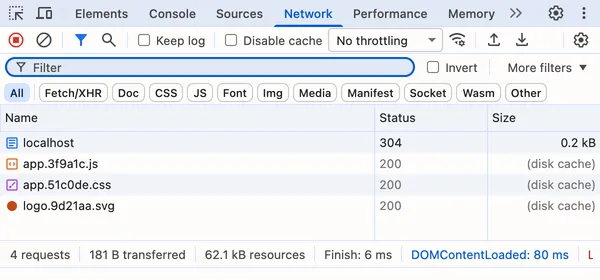
_A returning visit with the headers from Question 3. The HTML was revalidated (304), and the hashed assets came from the disk cache without a request._
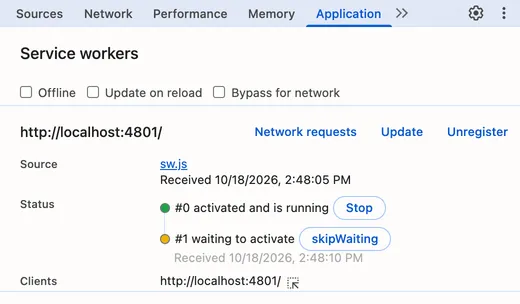
_After a deploy, the new worker (#1) is installed and waiting. The old one (#0) still controls the open tab._
The steps inside the browser can run as a script. It compares the tab’s build ID with what the server sends now, reads where the tab’s HTML came from, checks the service worker, and asks the server whether the files the tab loaded are still there. Open DevTools on the page that shows the old version and paste it into the Console:
The snippet is a script to paste into the DevTools console. [Copy it on the page](https://ihabkhattab.com/blog/deployed-but-users-see-the-old-version/), or build it from [the source](https://github.com/ikhattab/stale-deploy-check/tree/71c96d7/packages/probe).
It only requests that page and its own files. When it finds a problem, `copy(staleDeployCheckPrompt)` copies a prompt you can give your coding agent to fix it in your repo. If you haven’t pasted into the Console before, Chrome asks you to type `allow pasting` first.
## The Debrief
The first answer was “the browser cached it”. The follow-ups found four places an old version can live, and one assumption that hides them. Here’s each scenario as a request going down the layers until one answers:
Figure: the layers a request passes, from the top: the open tab, the service worker, the HTTP cache, the CDN, and the origin. Which one answers:
- No Cache-Control: Old HTML, and no request left the browser. How you spot it: Size column: (disk cache).
- CDN edge rule: Old HTML. The browser did revalidate, but with the CDN, not your server. How you spot it: Age: 2412 and cf-cache-status: HIT.
- Tab open since yesterday: 404, so import() rejects and Settings stays blank. How you spot it: A failed dynamic import in the console.
- Service worker shell: Old shell from v1's cache. Your Cache-Control headers never ran. How you spot it: Size column: (ServiceWorker), and a waiting worker in the Application panel.
- All fixed: New HTML, build 42. How you spot it: The build ID in the page matches the deploy.
| Layer | When it keeps the old version | Fix | How you spot it |
| --- | --- | --- | --- |
| HTTP cache | No `Cache-Control`, so the browser guesses | `no-cache` on HTML, `immutable` on hashed assets | A cache label in the Network panel’s size column |
| CDN | An edge rule or `s-maxage` holds the HTML | Purge on deploy, or `CDN-Cache-Control` | `Age` above zero, CDN cache header |
| The open tab | The page was loaded before the deploy | Keep old assets, reload on a missing chunk | A failed `import()` |
| Service worker | It serves the shell from its own cache | Let the new worker wait, switch when the user agrees | A waiting worker in DevTools |
| Your mental model | “No header means no cache” | Read the headers your host actually sends | `curl -sI` |
- `no-cache` means “revalidate”, `no-store` means “don’t keep it”.
- A content hash in the file name is what makes a year of caching safe.
- `Age` above zero means a shared cache answered.
- A deploy doesn’t change tabs that are already open. Plan for old code meeting new files.
These checks are now a tool. [stale-deploy-check](https://github.com/ikhattab/stale-deploy-check) runs the outside-in steps from Question 8 against a URL: the headers on your HTML and hashed assets, and what the CDN sends. It exits with an error when something can leave users on an old version, so it can run in CI after each deploy:
```sh
npx stale-deploy-check https://example.com/
```
Headers can’t show the open tab or the service worker. The [snippet from Question 8](#question-8-prove-it) checks them in the tab in front of you, and an agent skill reads your repo for the code that controls them: `npx skills add ikhattab/stale-deploy-check`.
It’s a work in progress: expect rough edges and missed cases. If it gets your site wrong, [open an issue](https://github.com/ikhattab/stale-deploy-check/issues).
[← All posts](https://ihabkhattab.com/blog/)